Account
A logged in user can view and edit their account details from the account page. To access the account page, click on the user icon in the top right corner of the page and select "Account" from the dropdown menu.
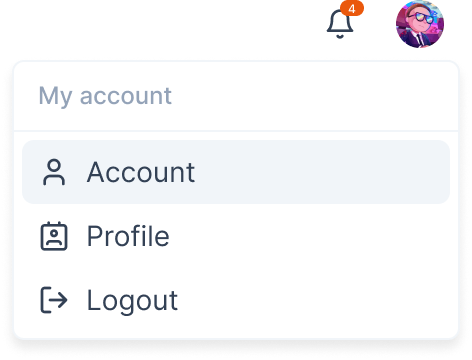
It will redirect you to the account page.
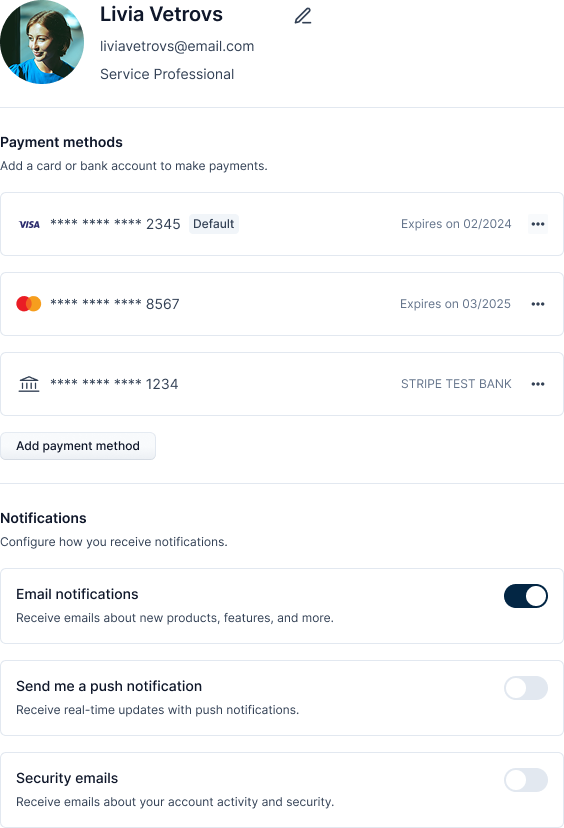
The account page displays the following information:
| Information | Description |
|---|---|
| User info | It displays the profile picture, name, and the email of the user with the option to edit them. |
| Payment methods | It shows the list of payment methods associated with the user. |
| Notification preference | It shows the notification preference set by the user with an option to toggle notifications on or off. |
Edit Profile
To edit the profile, click on the "Edit" icon in the user info section.

It will open the edit profile page where you can update your profile picture, name, email, and user role.
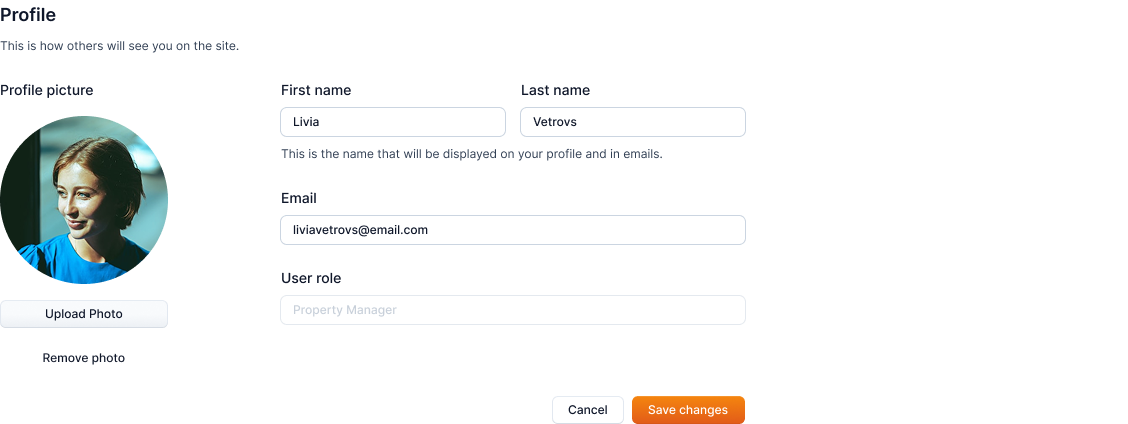
After updating the information, click on the "Update" button to save changes.
Payment Methods
Info
Not available to all users.
This section shows the list of payment methods associated with the user.
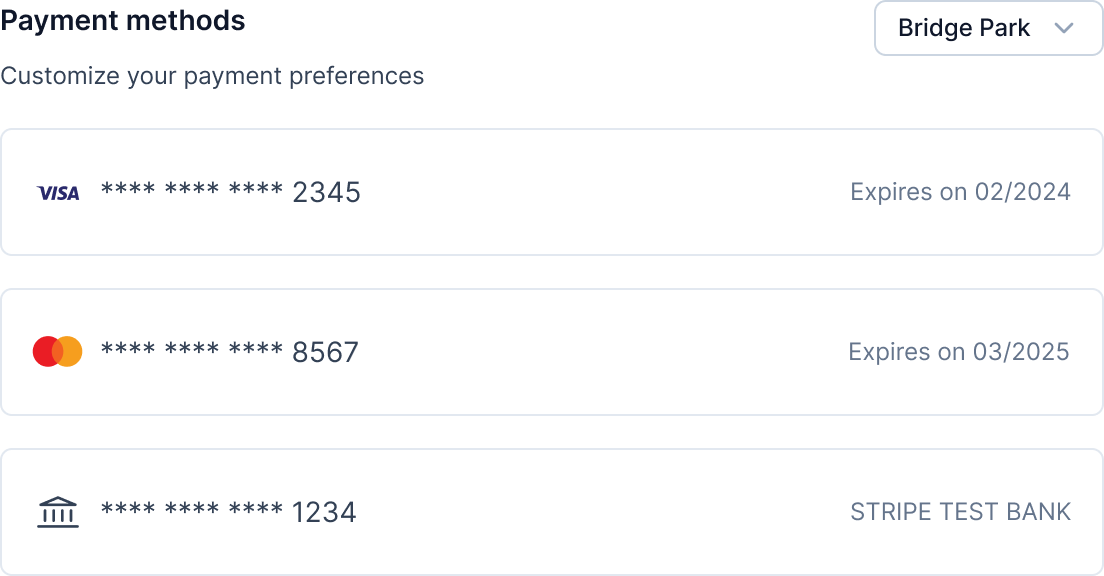
You can view the payment methods of a particular community by selecting the community from the dropdown menu.
Notifications
You can view and toggle the notification preferences from this section.
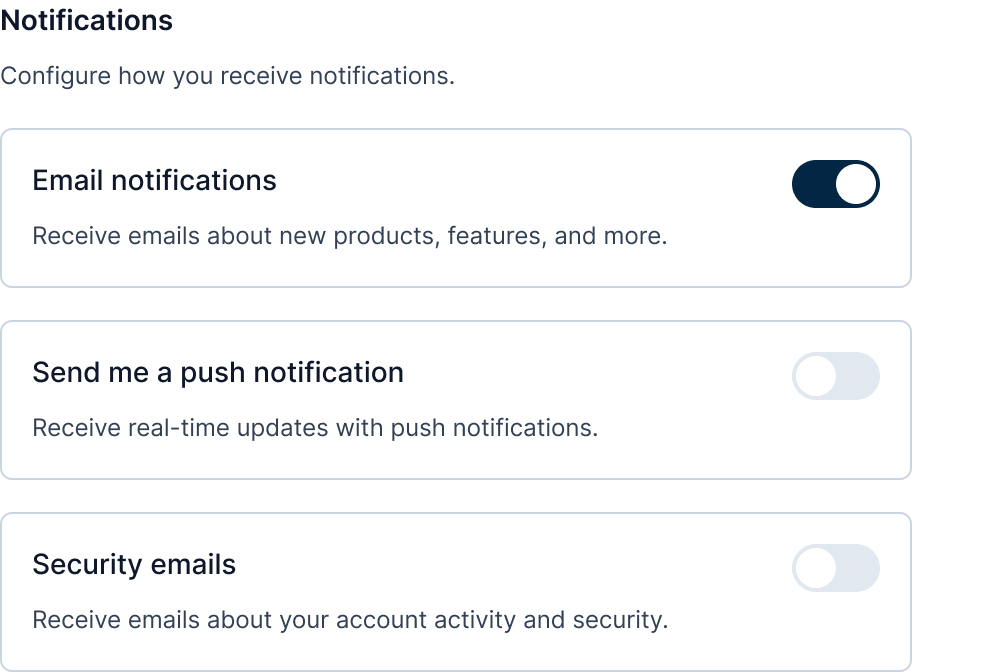
You have the option to toggle the notifications for the following:
| Notification | Purpose |
|---|---|
| Email notifications | To receive emails about new products, features, and more. |
| Push notifications | To receive real-time updates. |
| Security emails | To receive emails about your account activity and security. |