Add Turnover
Info
Not available to all users
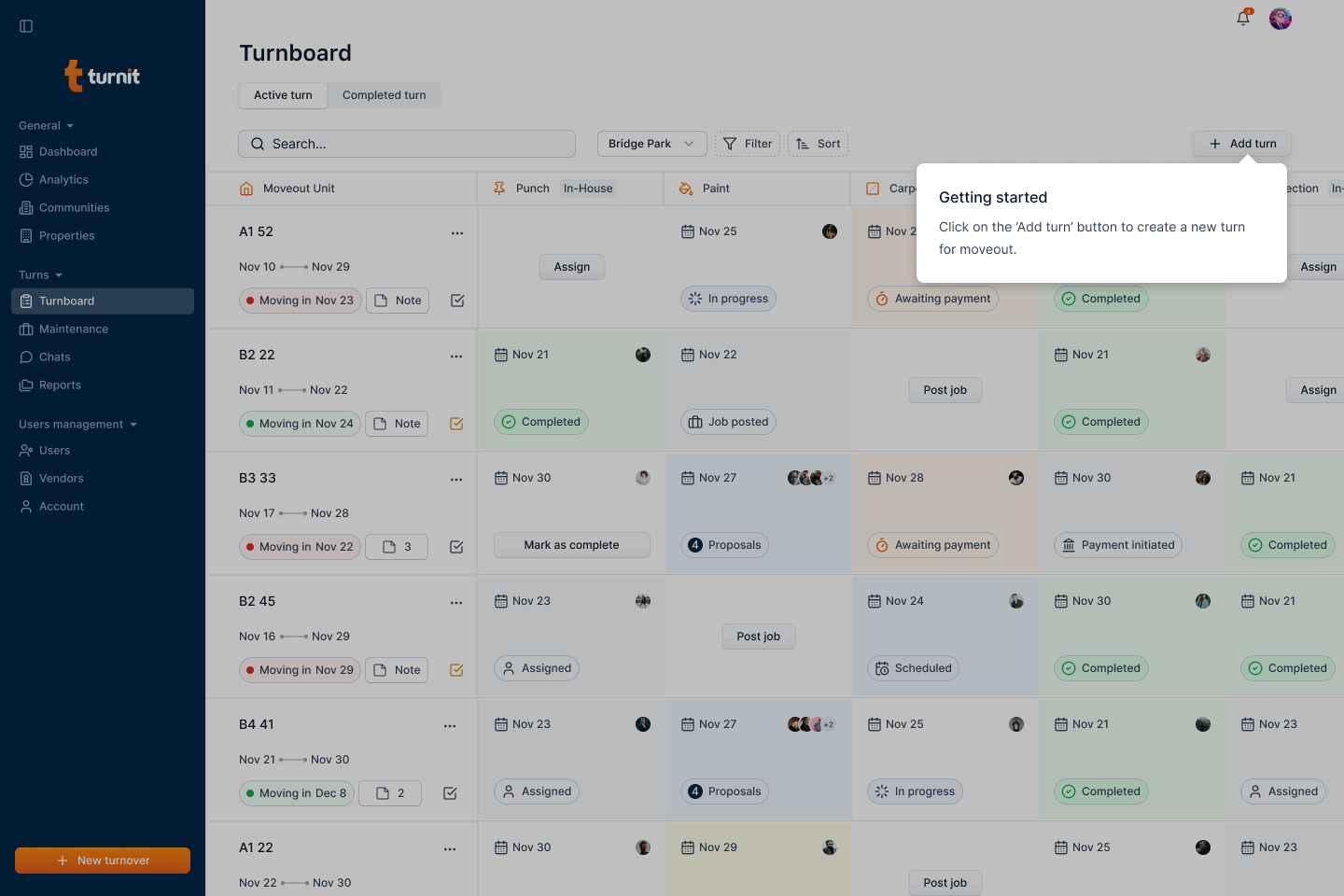
To add a turnover on the community, click the "Add turn" button.
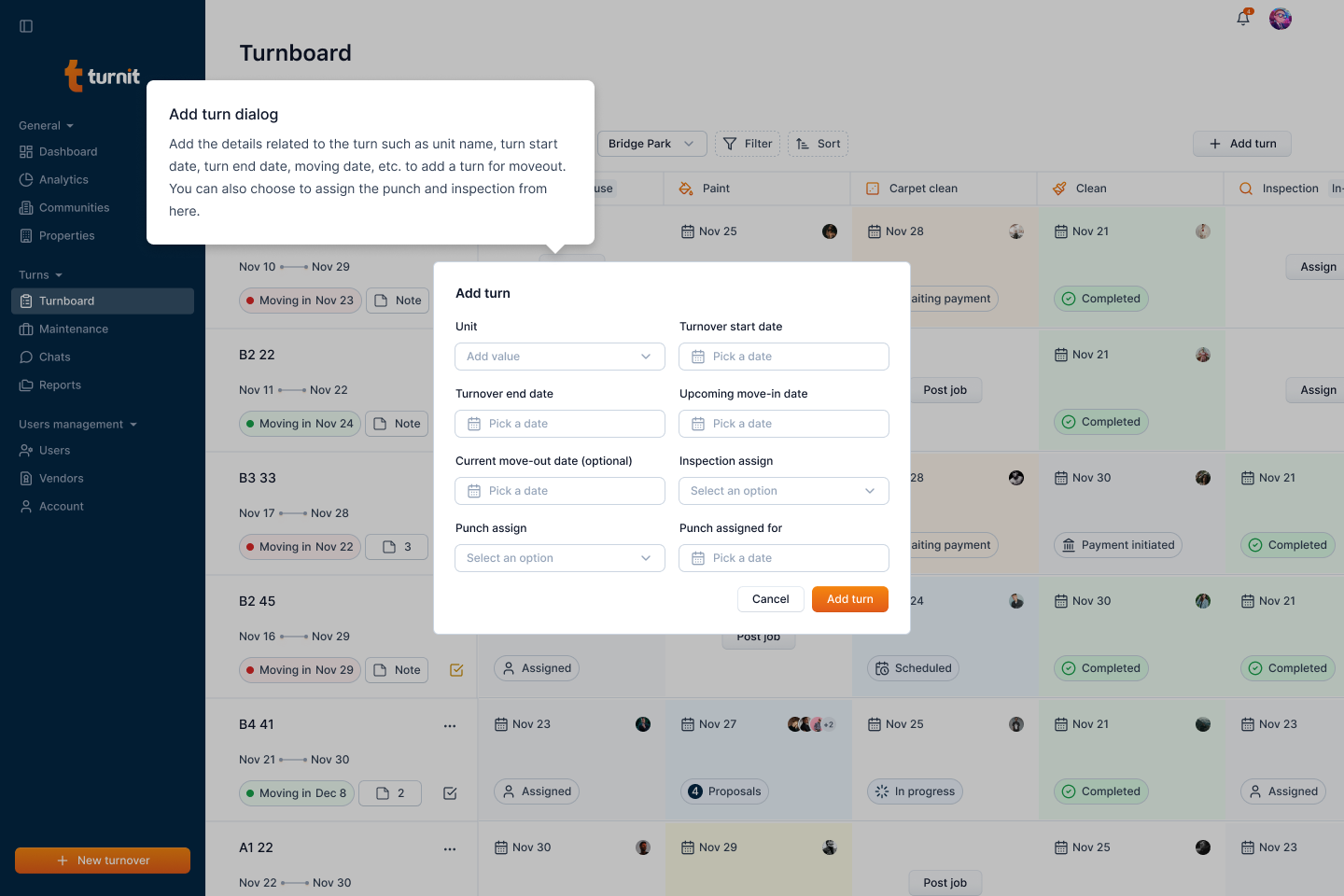
After clicking the button, a form will open in a pop-up. Here, you can enter the turnover's information.
Some key points:
- Only units of the current community will be listed.
- The move-out date for the current tenant is optional.
- Punch and inspection can be assigned later.
- If you add a punch or an inspection, you must also add the corresponding dates.
Fields in the "Add Turnover" Form
Unit Details (Required)
- Property – Select the property from the drop-down list.
- Unit – Choose the unit where the turnover is happening (only units in the current community will be available).
- Expected Turnover Duration – Pick a date range that indicates the expected time needed to complete the turnover.
- Upcoming Move-in Date – Select the date when the new tenant is expected to move in.
- Current Move-out Date (Optional) – If applicable, enter the date when the previous tenant is vacating.
Punch Details (Optional)
- Punch Assigned for Date – Pick a date for when the punch will be scheduled.
- Punch Assign – Select an option from the dropdown to assign the punch work to a specific person or team.
Inspection Details (Optional)
- Inspection Assigned for Date – Pick a date for when the inspection will take place.
- Inspection Assign – Select an option from the dropdown to assign the inspection to a responsible party.
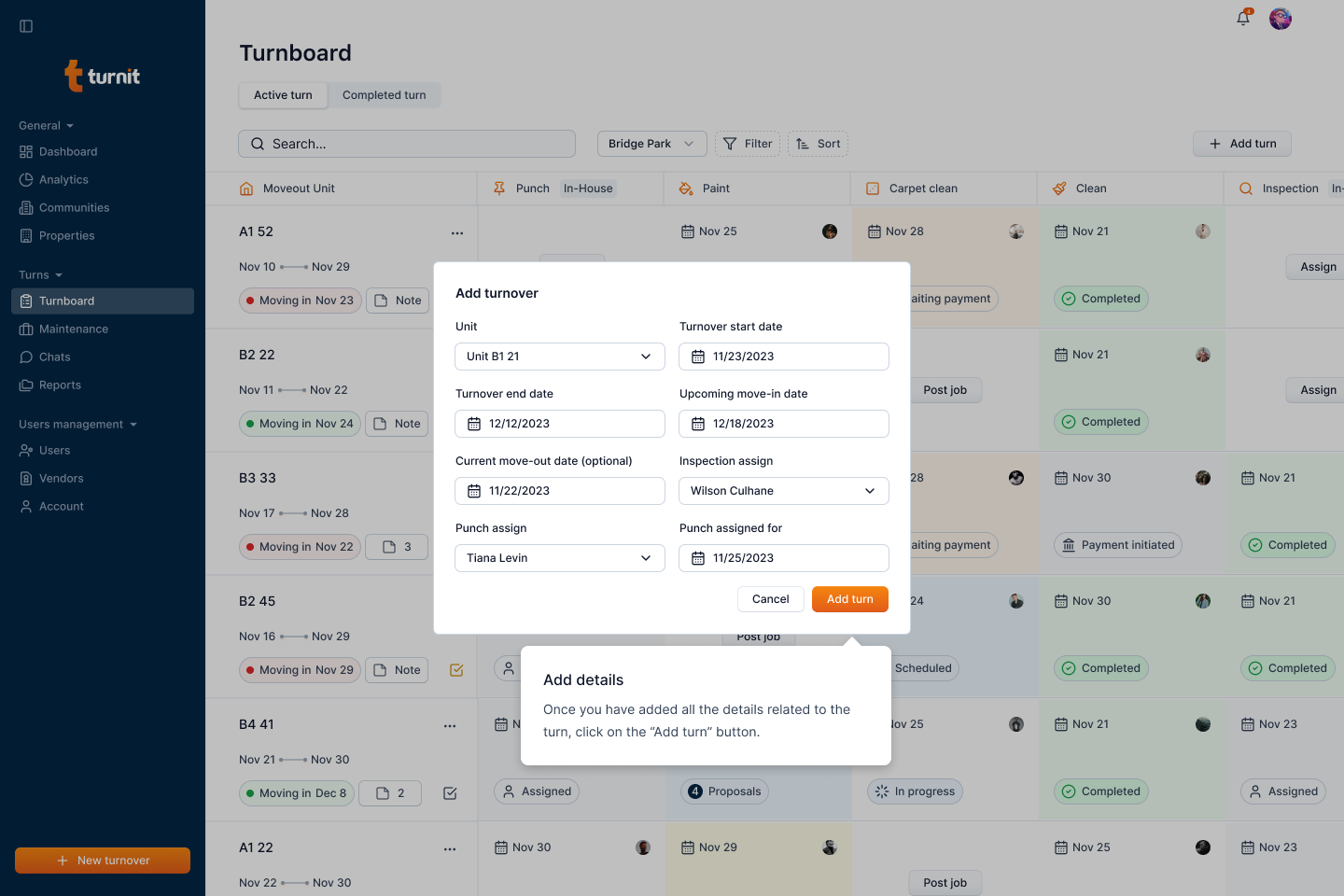
Once all necessary details are filled in, click the "Add turn" button to confirm the turnover creation.
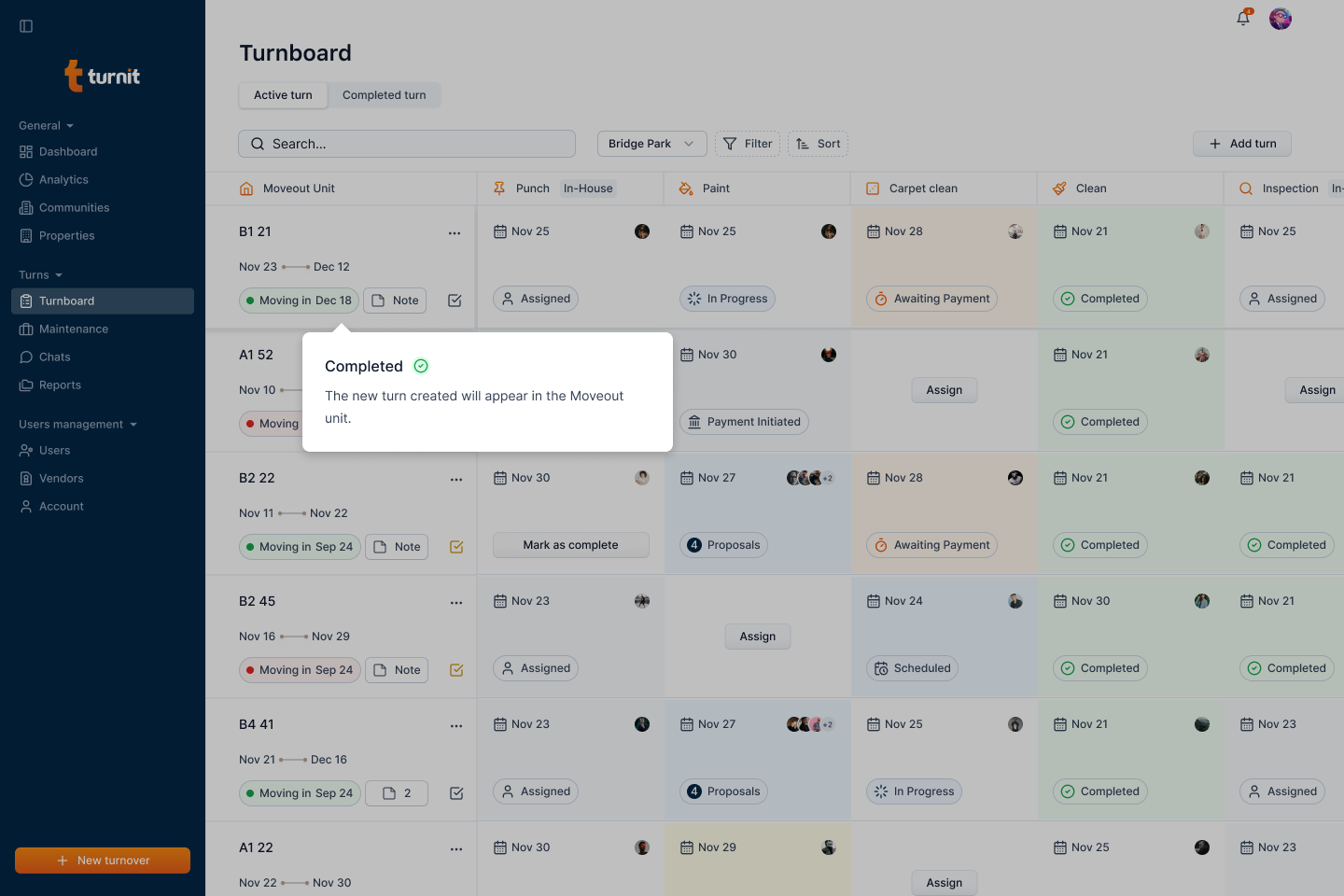
After submission, the newly created turnover will appear on the Turnboard, along with its assigned tasks and status.