Notifications
You can view the notifications that you have received by clicking on the bell icon in the top right corner of the page.

The notification bell also has a count of the number of unread notifications that you have received.
After clicking on the bell icon, a popup will appear with a list of your notifications.
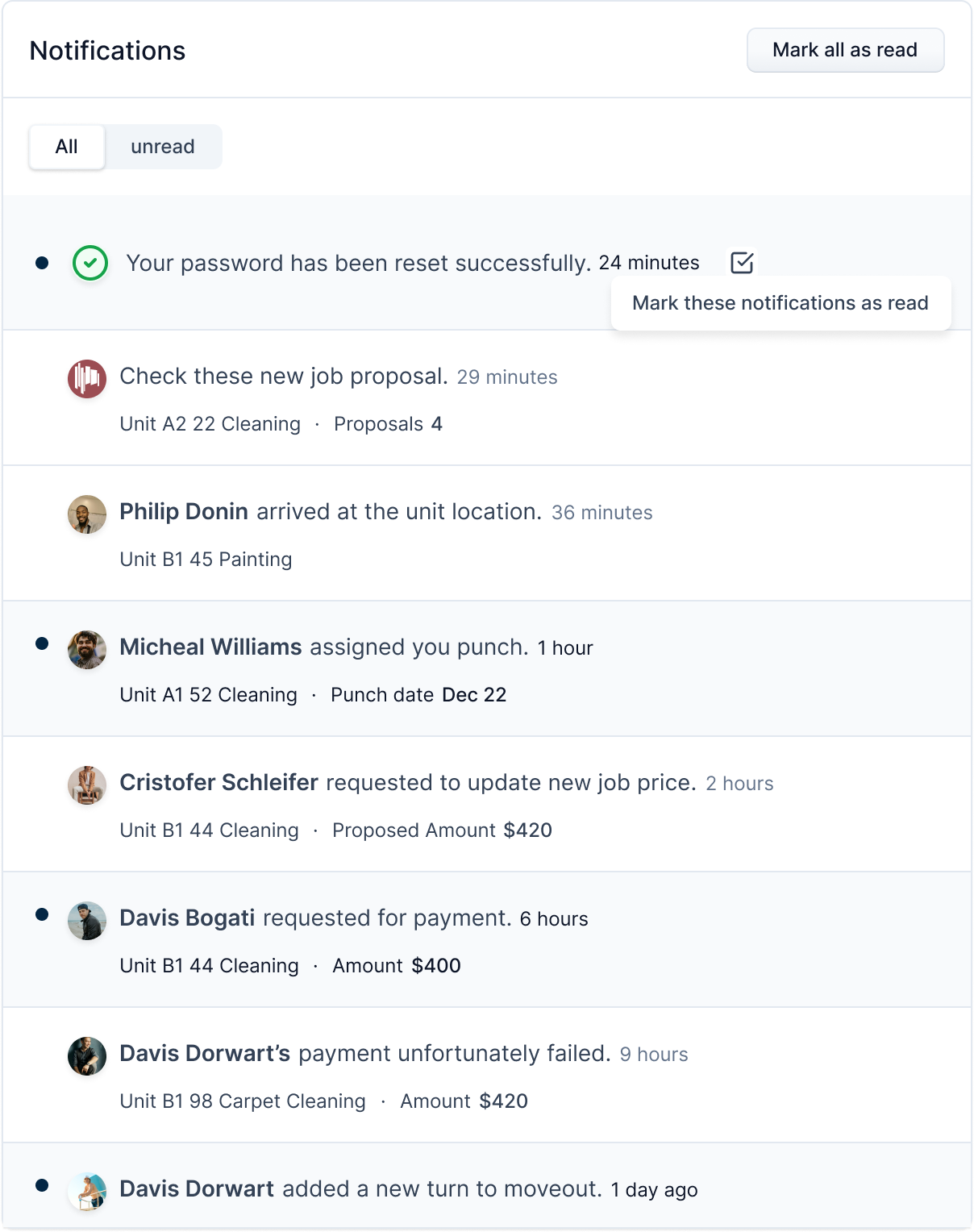
You can use the switch tab to toggle between all notifications and unread notifications.

Note
Unread notifications are marked with a black dot to the left of the notification. Read notifications do not have this dot.
To mark all the notifications as read, click on the Mark all as read button.

After clicking the button, all the notifications will be marked as read.
You can also mark individual notifications as read by clicking on the checkbox next to the notifications and clicking the Mark these notifications as read button.

Note
On clicking the notification, you are redirected to respective page/modal of the notification. For example, if a notification is job related, you are redirected to the job detail modal, and if it is turn related, you are redirected to the turnboard.