Edit and Delete Turnover
Info
Not available to all users
You can update information of the turnover after you have created the turnover. To start editing, click the three-dots icon in Moveout unit cell.
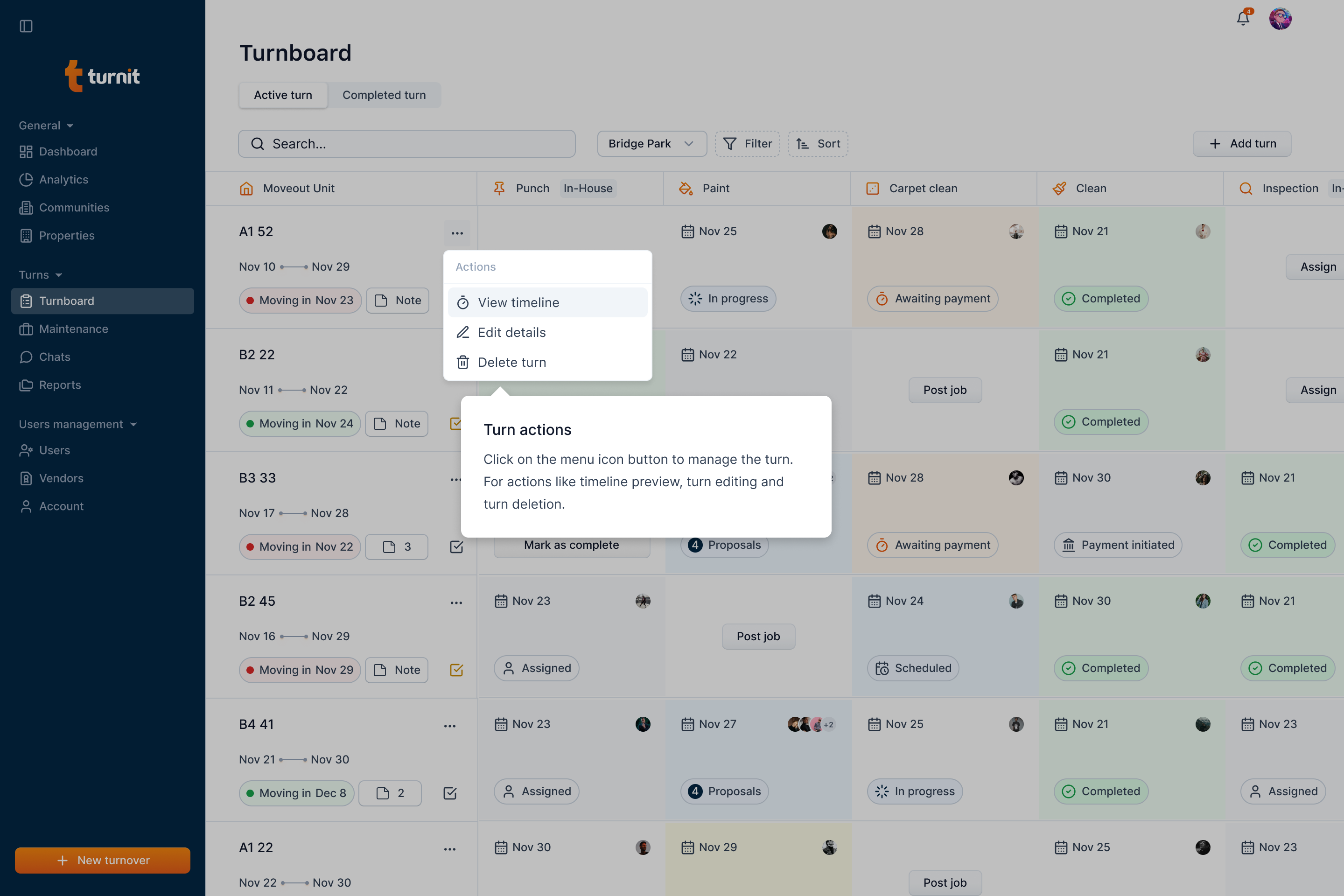
Here, you can select edit option to open the popup.
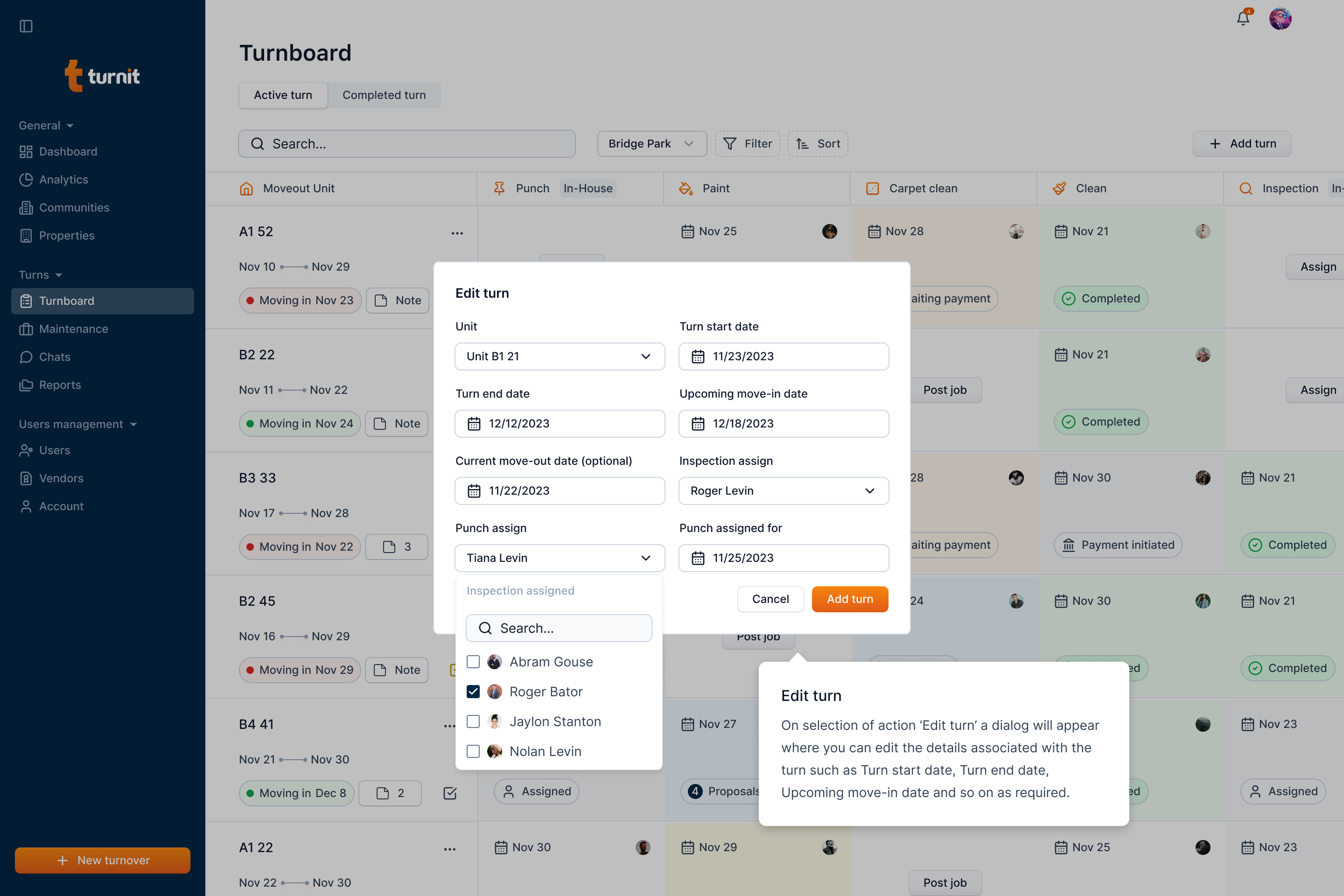
Fields in the "Edit Turnover" Form
Unit Details (Required)
- Property – Select the property from the drop-down list.
- Unit – Choose the unit where the turnover is happening (only units in the current community will be available).
- Expected Turnover Duration – Pick a date range that indicates the expected time needed to complete the turnover.
- Upcoming Move-in Date – Select the date when the new tenant is expected to move in.
- Current Move-out Date (Optional) – If applicable, enter the date when the previous tenant is vacating.
Punch Details (Optional)
- Punch Assigned for Date – Pick a date for when the punch will be scheduled.
- Punch Assign – Select an option from the dropdown to assign the punch work to a specific person or team.
Inspection Details (Optional)
- Inspection Assigned for Date – Pick a date for when the inspection will take place.
- Inspection Assign – Select an option from the dropdown to assign the inspection to a responsible party.
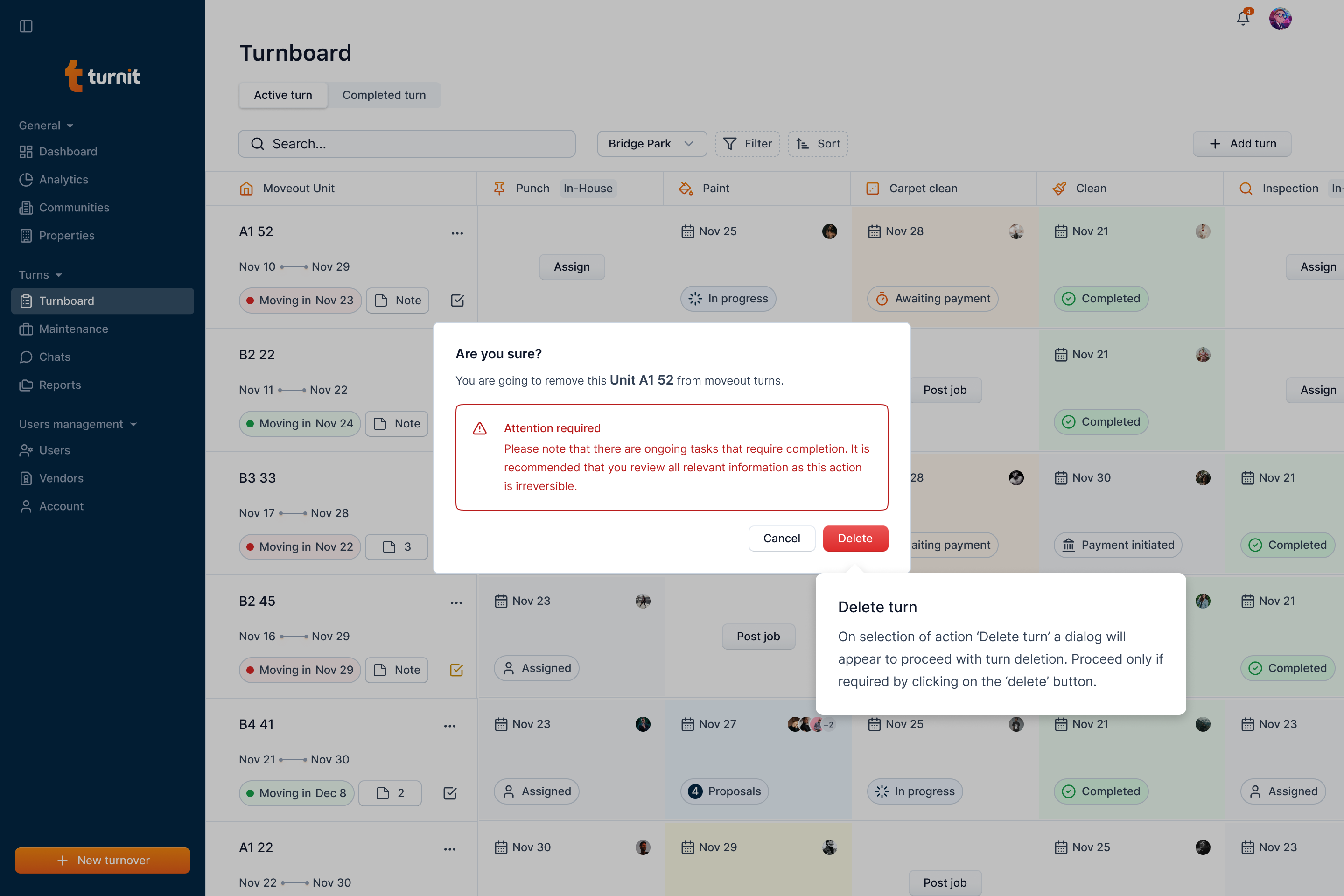
You can also delete the turnover if not needed using the delete option in the menu.