Job Posting Template
In this section you can create templates for job instructions and tasks based on the type of the service in the community. These templates can be used while creating a job in the community.
Example
For example, for Painting service in your community, you can create a template for the instructions and tasks for Painting. Then, whenever you create a job for Painting, you can use the template to add the instructions and tasks to the job.

Info
Not available to all users
Add Job Posting Template
To add a job posting template, click on the Add button under Job Posting Template section.
It will open a popup menu from where you can select the service available in your community for which you want to create the template.
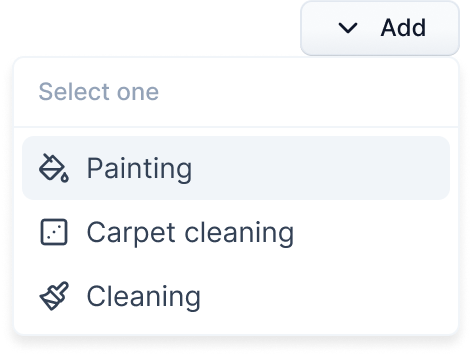
Click on the service name, and it will open a new page where you can create the template for job tasks and instructions.
Add Tasks Template
To add a job task template for the selected service, make sure the Tasks tab is selected.
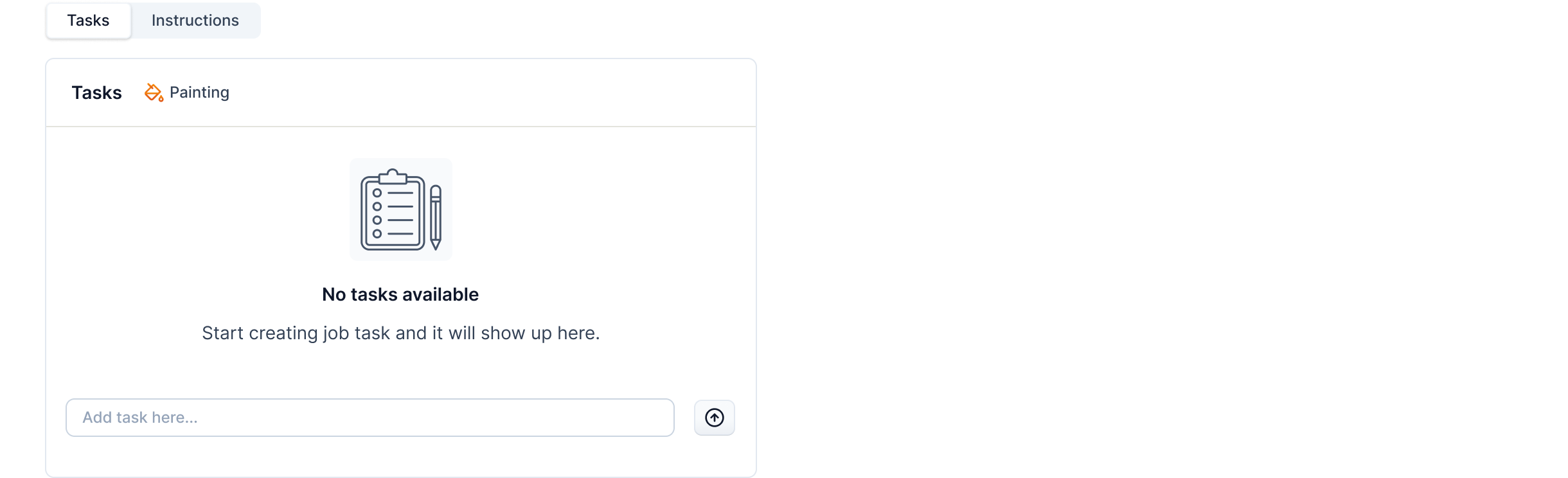
Add Job Task
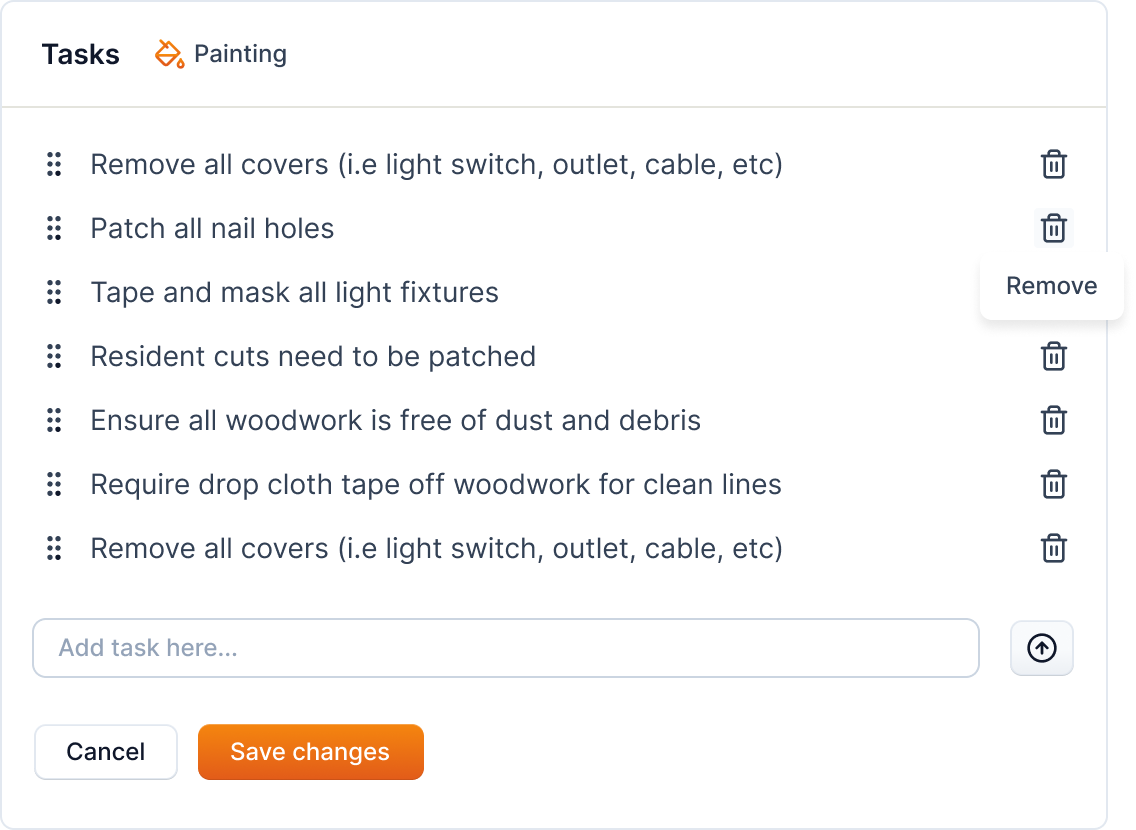
To add a job task, enter the task in the input field and click on the add icon next to the field to add the task to the template.

The added job task is shown in the list of tasks as shown below.
Remove Job Task
The added job task can be removed by clicking on the trash icon next to the task.
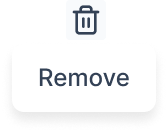
On clicking the icon, the task is removed from the template.
Arrange Job Tasks
The added job tasks can be arranged by dragging and dropping the tasks in the list. You can use the drag icon to the left of the task to drag the task and drop it in the desired position.

Click on the Save Changes button to save the job task template.

Warning
If you've made changes to the template and haven't saved them, you'll be prompted to save the changes before navigating away from the page.
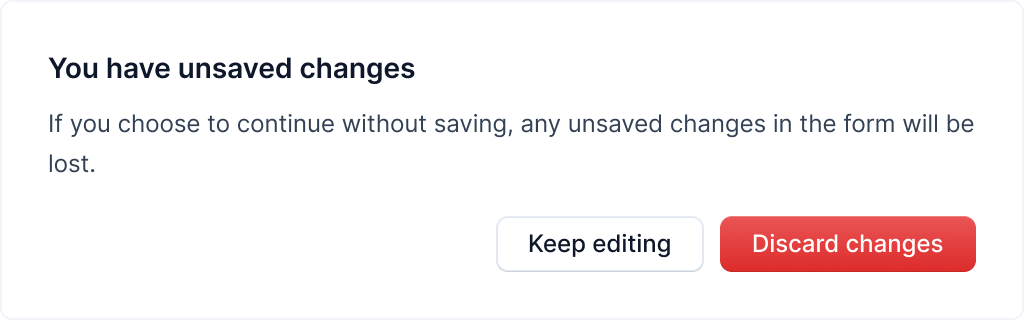
You will have the option to keep editing or discard the changes.
Add Instructions Template
To add a job instruction template for the selected service, make sure the Instruction templates tab is selected.
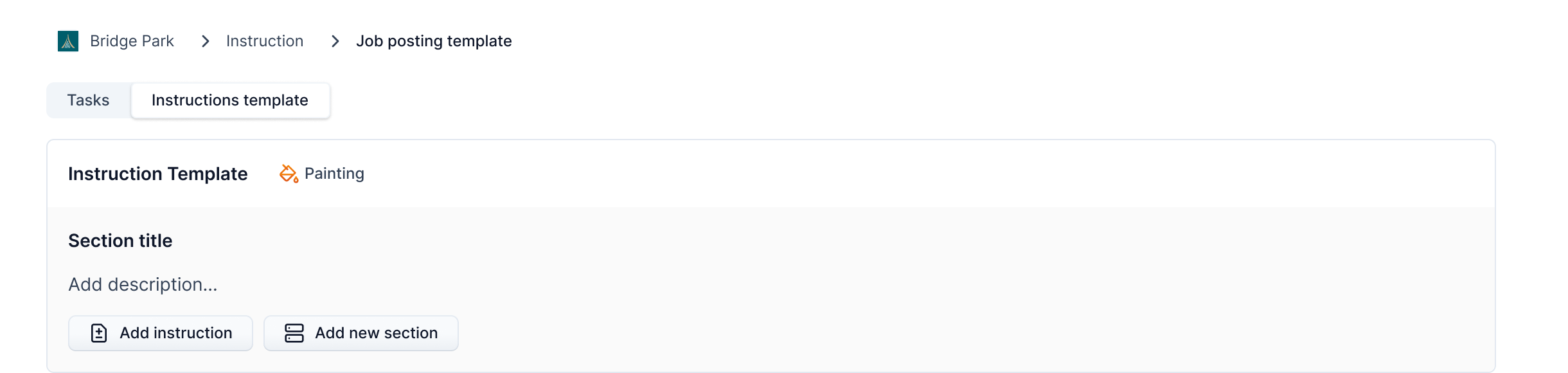
Instructions can be divided into sections. By default, a section is provided. More sections can be added by clicking on the Add new section button. Sections have title, description and instructions.

On clicking the button, a new section is appended to the template.
Info
Not available to all users
Section Actions
Actions on the section can be performed by clicking on the three dots icon on the section. The actions include: Duplicate, Move, Delete, and Collapse.
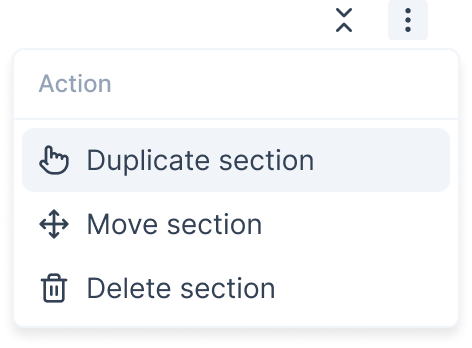
The following table shows the purpose of the actions along with the instructions to perform the action:
| Action | Purpose | Instruction | Component |
|---|---|---|---|
| Duplicate | It duplicates the current section. | Click on the Duplicate section option from the three dots menu. |  |
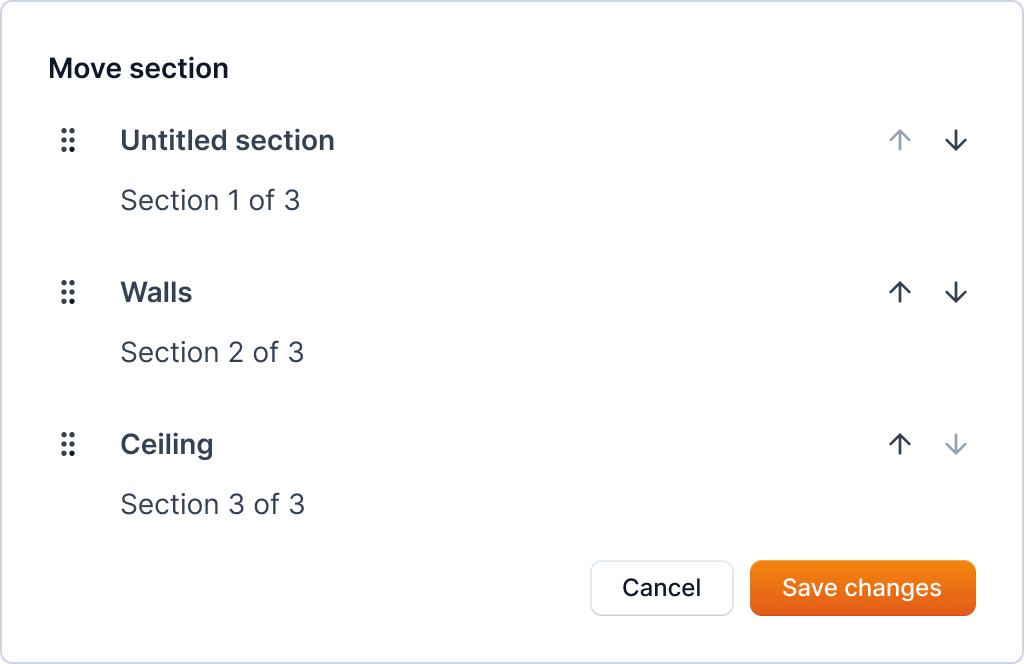
| Move | It moves the current section up or down. | Click on the Move section option from the three dots menu. It will open a popup which provides you with an interface to drag sections. |  |
| Delete | It deletes the current section. | Click on the Delete section option from the three dots menu. |  |
| Collapse/Expand | It collapses or expands the current section. | Click on the collapse icon next to the three dots menu. |  |
Move a section
When you click on the Move section option, it will open a popup which provides you with an interface to drag sections. Use the arrows or drag icon to move the section up or down. Click on the Save changes button to save the changes.
Delete a section
Warning
This action is irreversible. Once you delete a section, it will remove all the instructions in the section.
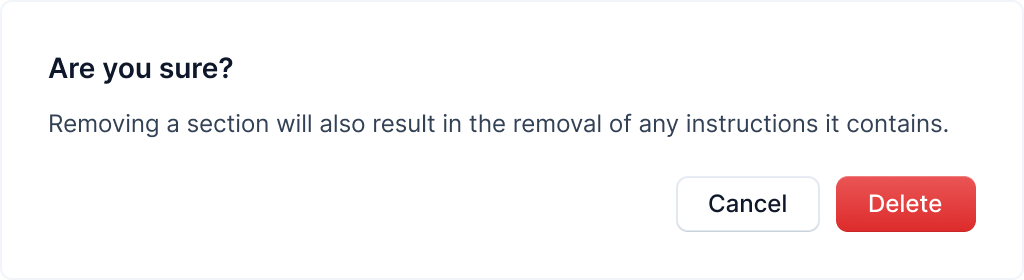
When you click on the Delete section option, it will open a popup to confirm the deletion of the section. Click on the Delete button to delete the section.
Add Job Instruction
To add a job instruction, click on the Add instruction button.

It will show an interface as below to add the instruction.

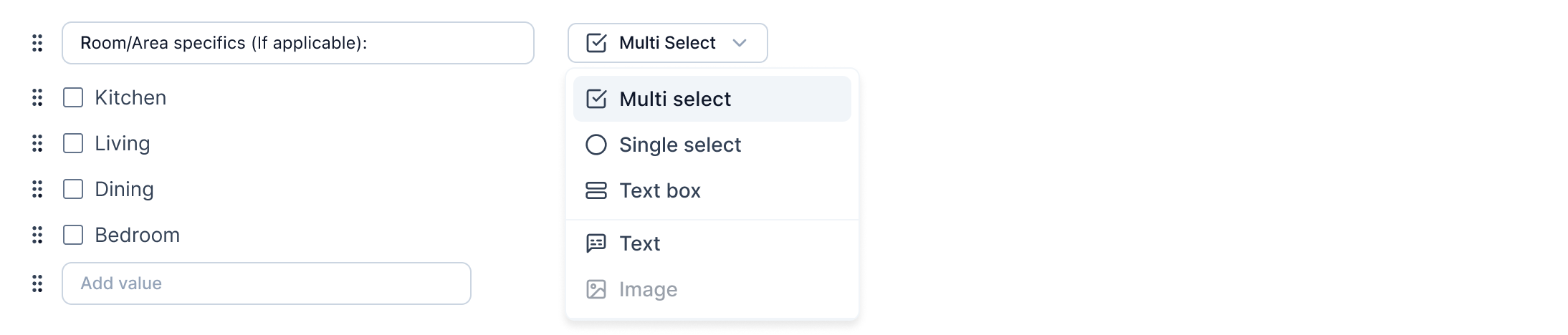
You can select the type of instruction from the dropdown menu. The types of instructions available are: Single select, Multi select, Text box, and Text.
| Instruction type | Purpose | Menu option |
|---|---|---|
| Single select | It's used when only one option needs to be selected from the list of options. |  |
| Multi select | It's used to select multiple options from the list of options. |  |
| Text box | It allows you to enter text in the input field while creating job. |  |
| Text | It allows you to write some text as instruction. |  |
After selecting the type of instruction, you can enter the instruction in the input field.
Tip
You can also add options for the instruction if the instruction type is single select or multi select as shown below.
Remove Job Instruction
The added job instruction can be removed by clicking on the trash icon next to the task.
On clicking the icon, the task is removed from the template.
Arrange Job Instruction
The added job instruction can be arranged by dragging and dropping the instruction in the list. You can use the drag icon to the left of the instruction to drag it and drop it in the desired position.
The added instruction is saved by default