Services
The Services tab in the community details page allows you to manage the services available in a community. The order of active services determines the sequence of service completion in the workflow.
Activating a Service
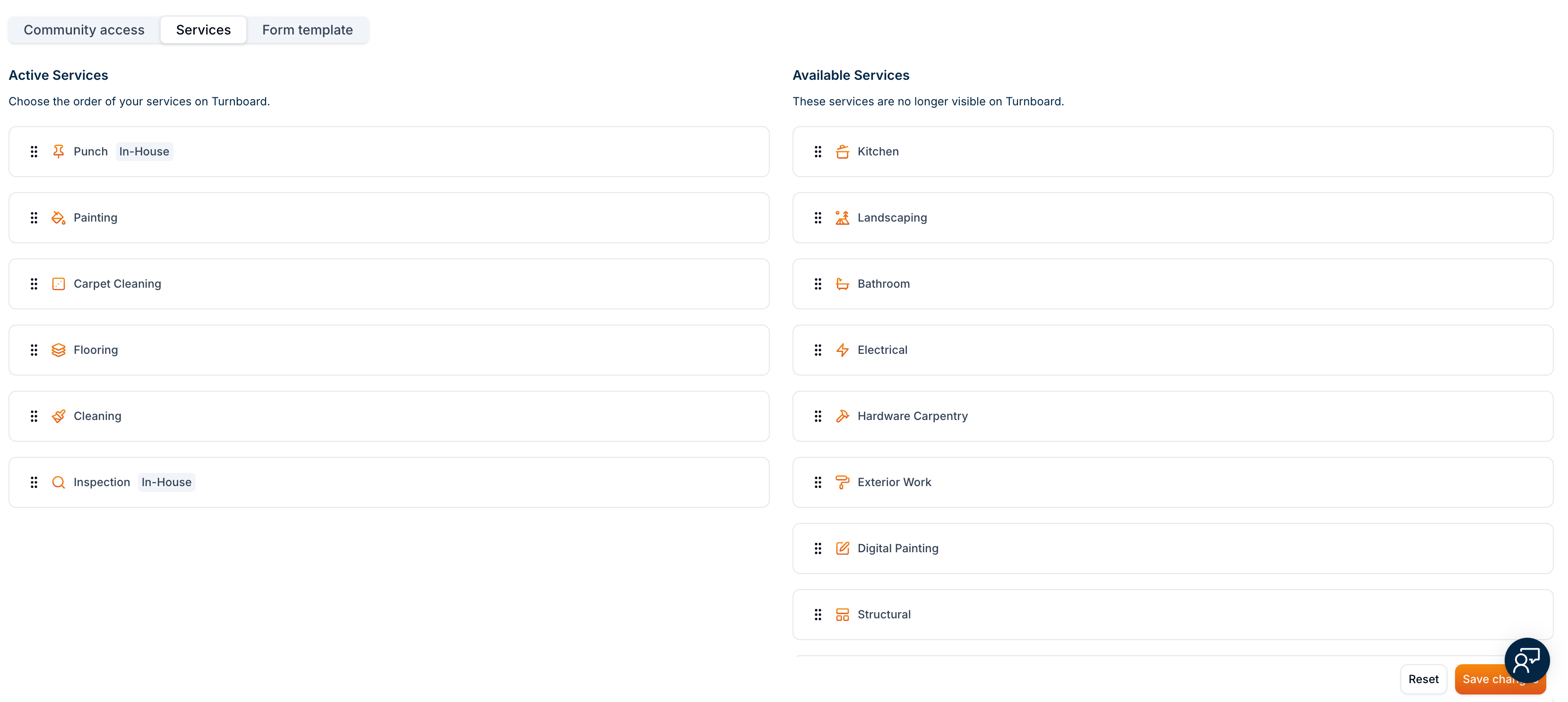
To activate a service, drag a service from the Available Services section to the Active Services section. Once moved, the service becomes visible on the Turnboard and part of the workflow.
Reordering Active Services
The order of services in the Active Services section defines their execution sequence. You can change the order by dragging and rearranging the services as needed.
Example
If you want cleaning to be done before the Inspection, move cleaning above Inspection in the list.
Removing an Active Service
To remove a service from Active Services, drag it back to the Available Services section. This action hides the service from the Turnboard but does not permanently delete it.
Saving Changes
After making adjustments, click the Save Changes button to confirm your modifications. If you need to revert to the previous state, click Reset.
Info
These changes will only take effect after saving. Exiting the page without saving will discard the updates.