Edit Community
Info
Not available to all users
You can edit a community from the communities page by clicking the three dots icon and clicking on the "Edit" button to edit the community information.
After clicking the button, the same form which was used in community creation will open in a popup with prefilled information. Here, you can edit the community's information.
Fields in the "Edit Community" Form
The form consists of the following fields:
- Name: Modify the name of the community.
- Address: Update the community's address.
- Map View: A visual representation of the location for reference.
- Community Logo: Change the existing logo by uploading a new file.
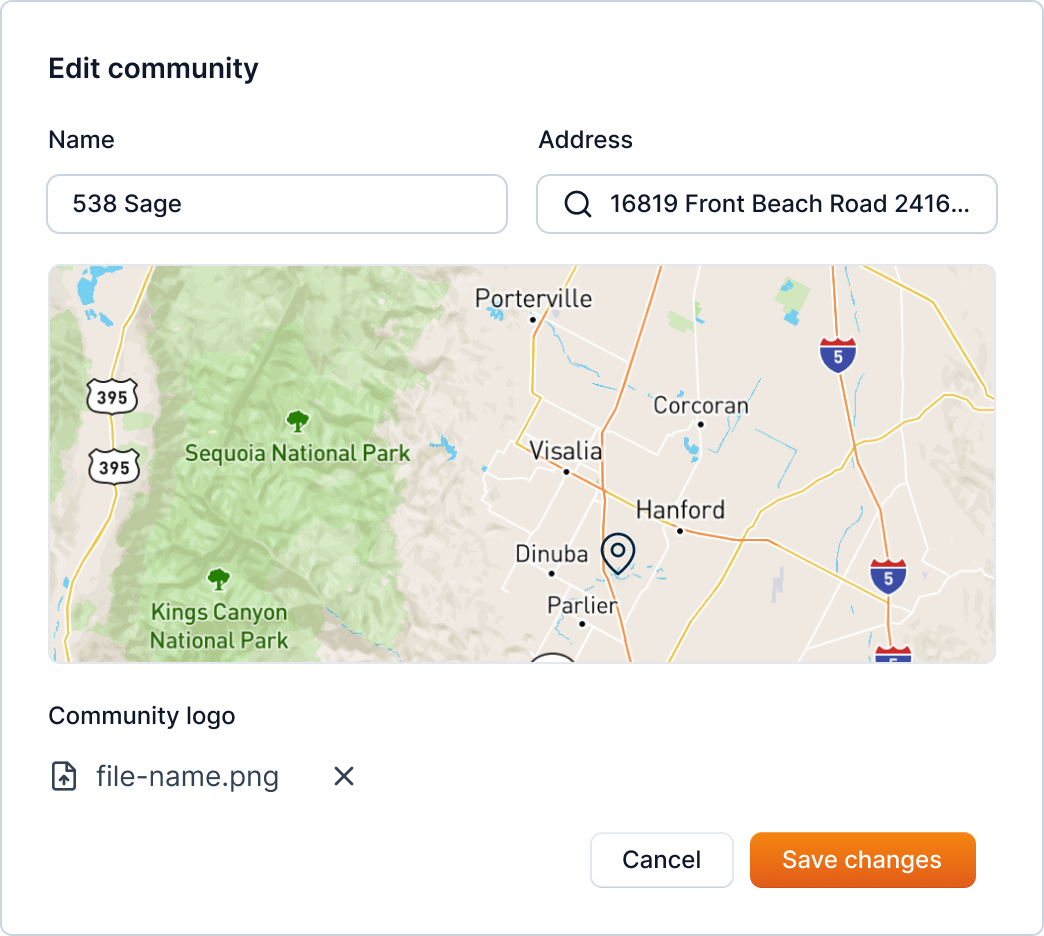
After updating the information, you can click on the "Save Changes" button to save the changes.
Additional Actions
- Cancel: If you want to discard changes, click the "Cancel" button.
- Delete Logo: If a logo is uploaded, you can remove it by clicking the delete icon next to the file name