Edit and Delete Unit
Info
Not available to all users
You can update information of the Unit after you have created the unit. To start editing, click the three-dots icon.
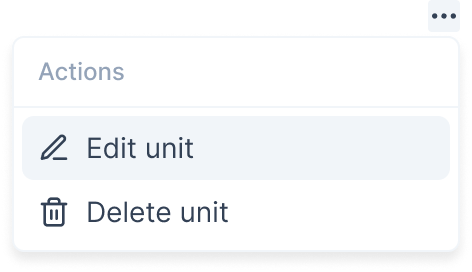
Here, you can select the edit option to edit the unit.
After clicking the button, the same form which was used in unit creation will open in a popup with prefilled information.
Fields in the "Edit Unit" Form
The form consists of the following fields:
- Building Number: Enter the building number where the unit is located.
- Apartment Number: Provide the apartment or unit number.
- No. of Bedrooms: Specify the number of bedrooms in the unit.
- No. of Bathrooms: Enter the number of bathrooms.
- Floor Area (sq. ft.): Indicate the unit’s total floor area in square feet.
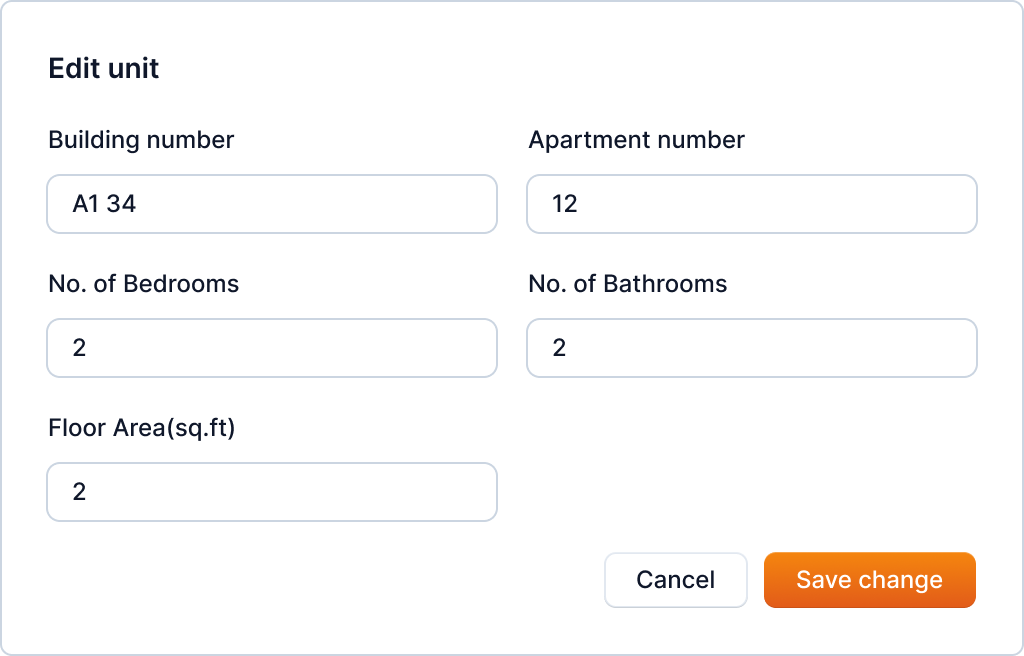
Here, you can update the unit's information: Building number, Apartment number, Number of bedrooms, Number of bathrooms and Floor area.
After updating the information, you can click on the "Save Change" button to save the changes.
You can also delete the unit by clicking on the "Delete" button from the action menu.
After clicking the button, a popup will open asking you to confirm the deletion.
Warning
This action is irreversible. Once you delete a unit, it cannot be recovered
Carefully read the warning and click on the "Delete" button to continue with the unit deletion.
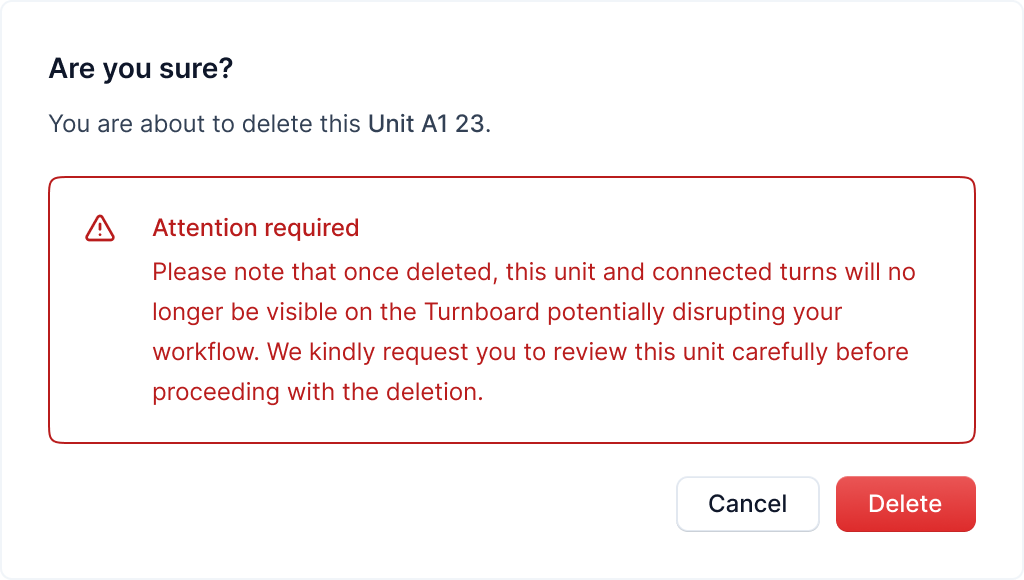
After deleting a unit, its connected turns will no longer be visible, and you'll be redirected to the units page.