Introduction
Info
Not available to all users.
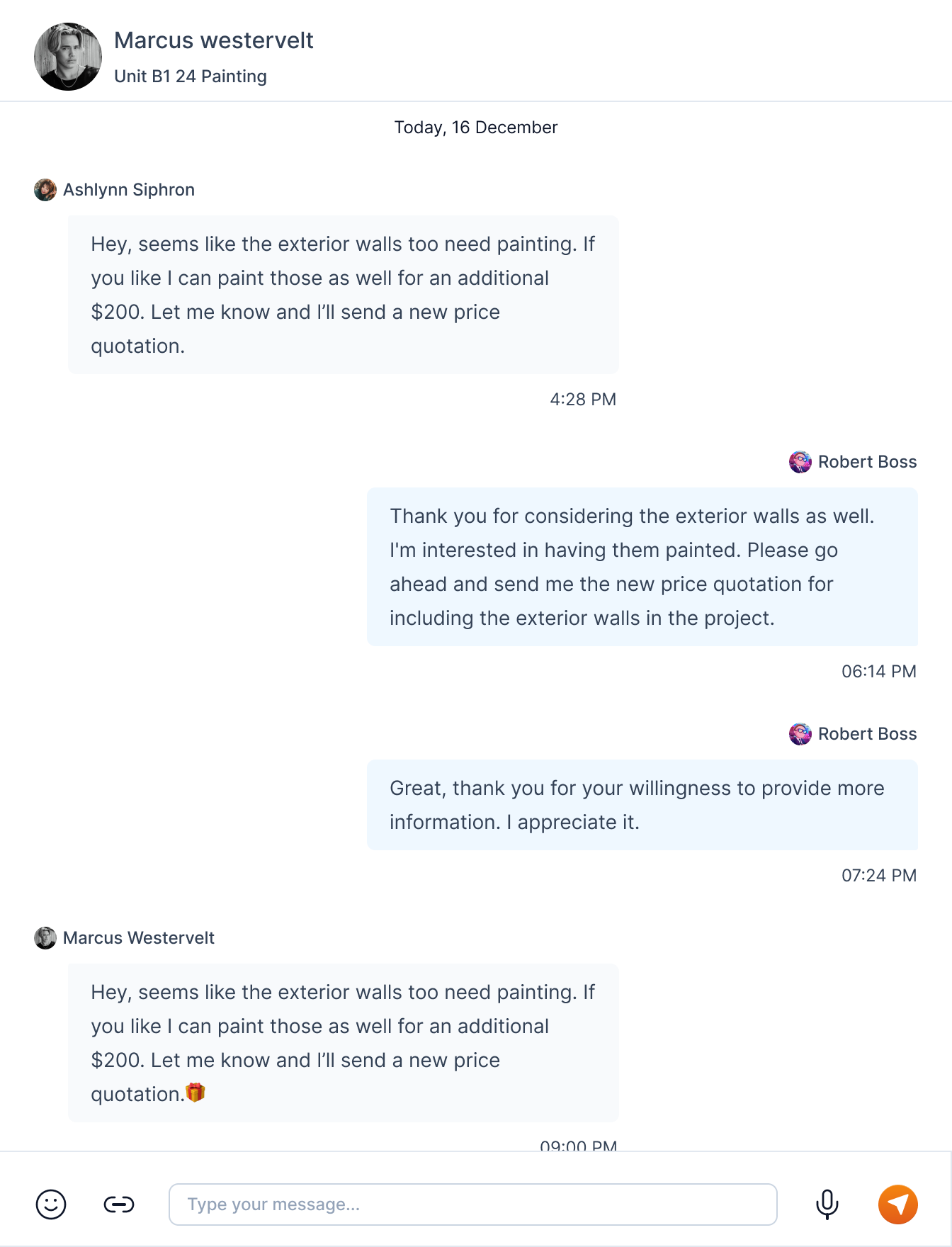
You can chat with vendors on the platform through the chat feature.
A new chat is created when a vendor for a particular job is hired. The "chats" page shows conversations with vendor on the basis of jobs.
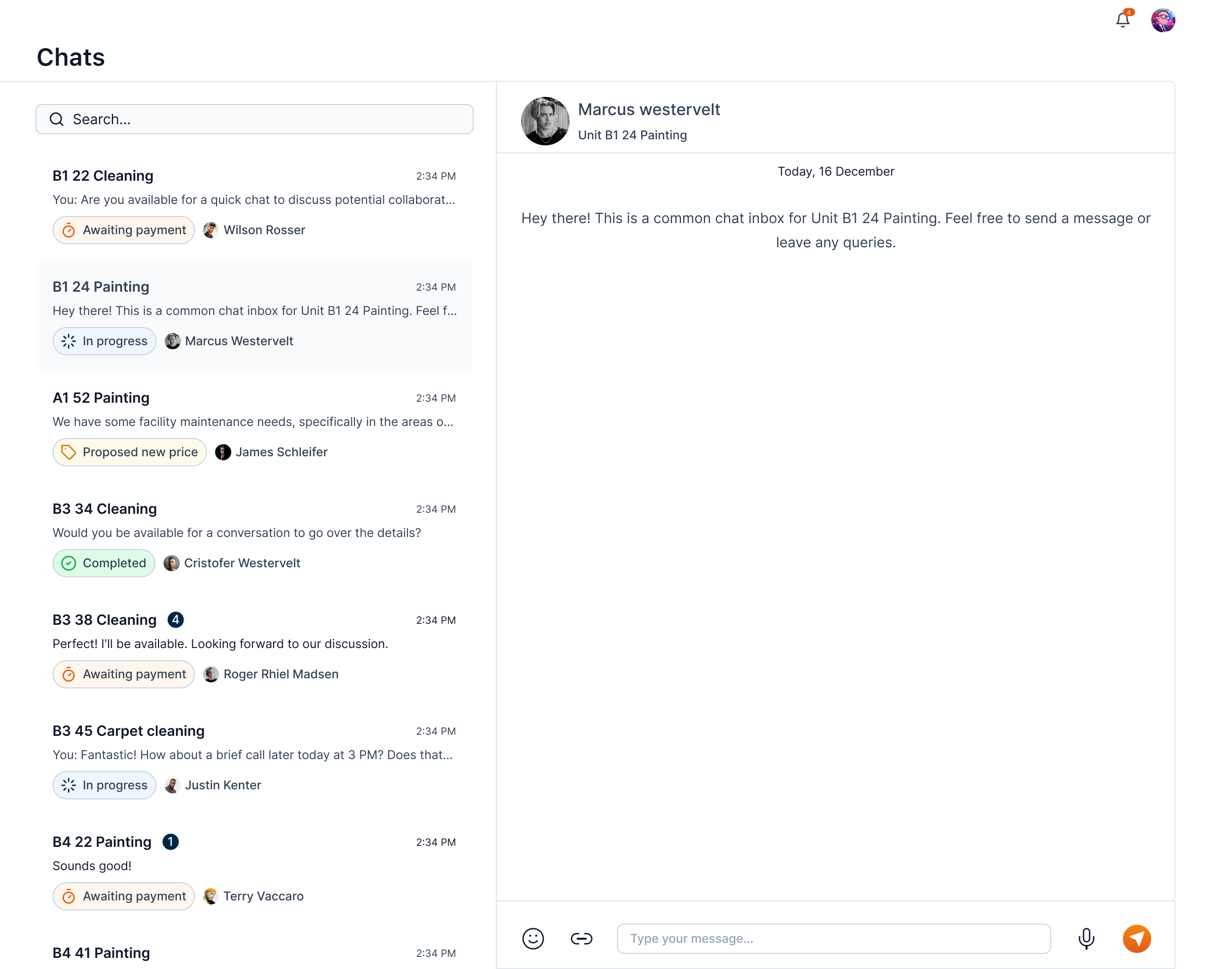
The chat page is divided into two sections:
-
Chat Listing: This section shows all the chats with vendors on the basis of jobs. You can search for a particular chat using the search feature.
-
Messages: This section shows the messages in the selected chat. You can send a message to the vendor by typing in the message box and clicking on the send button.
In the chat listing section, we can find chats with vendors on the basis of jobs.
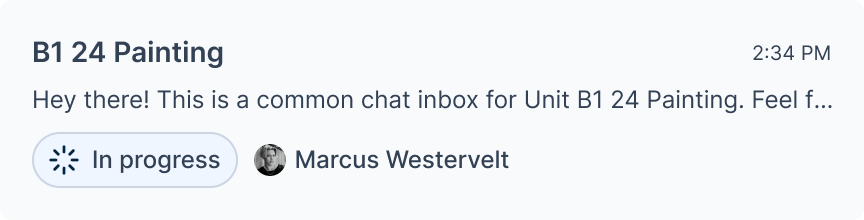
The chat card has the title of the associated job. It also has other information like the vendor's name, and the last message sent in the chat. It also includes the status of the job in the form of a chip.
Send a Message
To send a message, click on the chat card from the chats list. This will open the chat window to the right for the selected job.
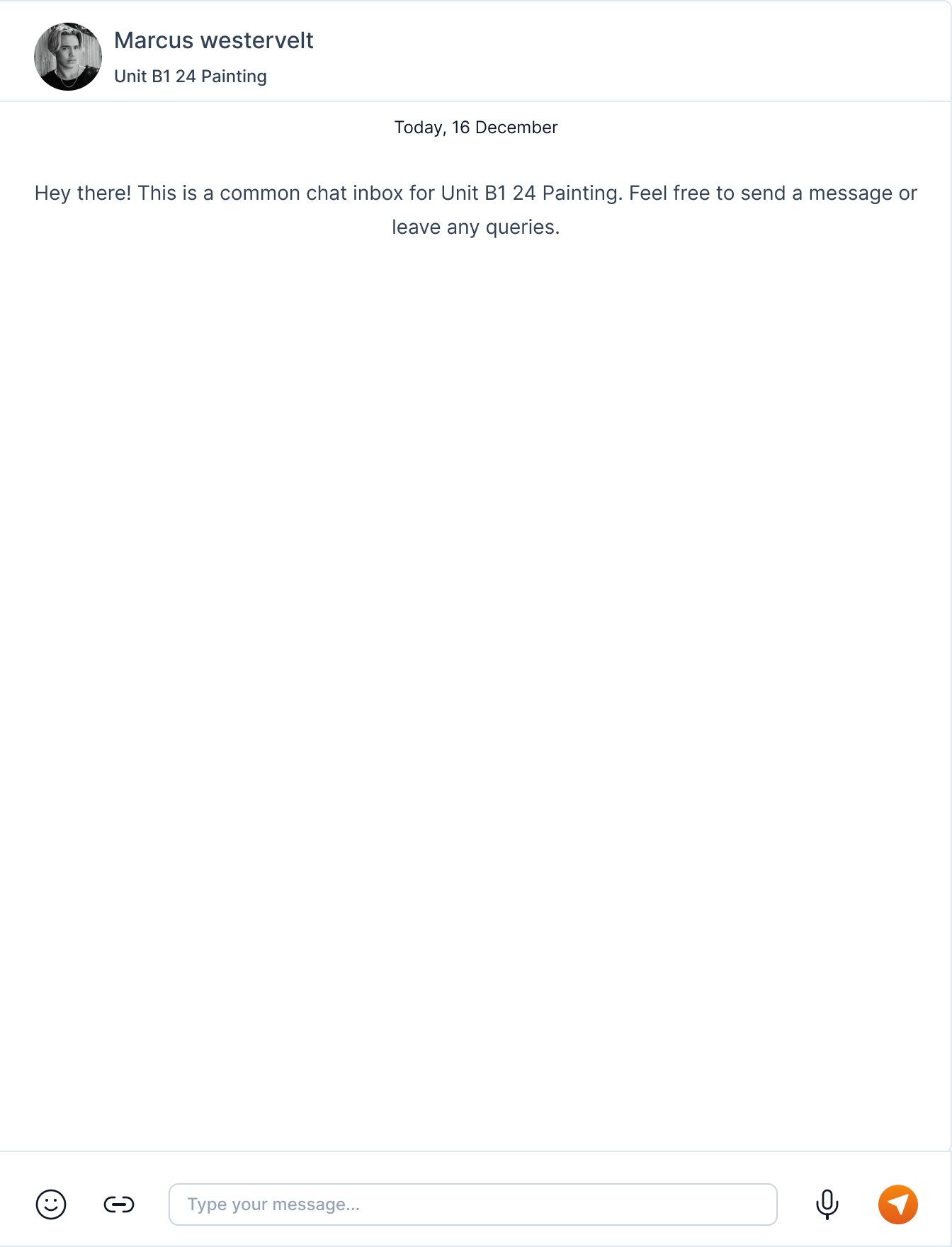
Type your message in the message box and click on the send button or the Enter key.
Tip
You can also send attachments by clicking on the attachment icon, emojis by clicking the emoji icon, and voice messages by clicking the mic icon.
The sent messages are shown on the right side of the chat window and the received messages are shown on the left side of the chat window.