Introduction
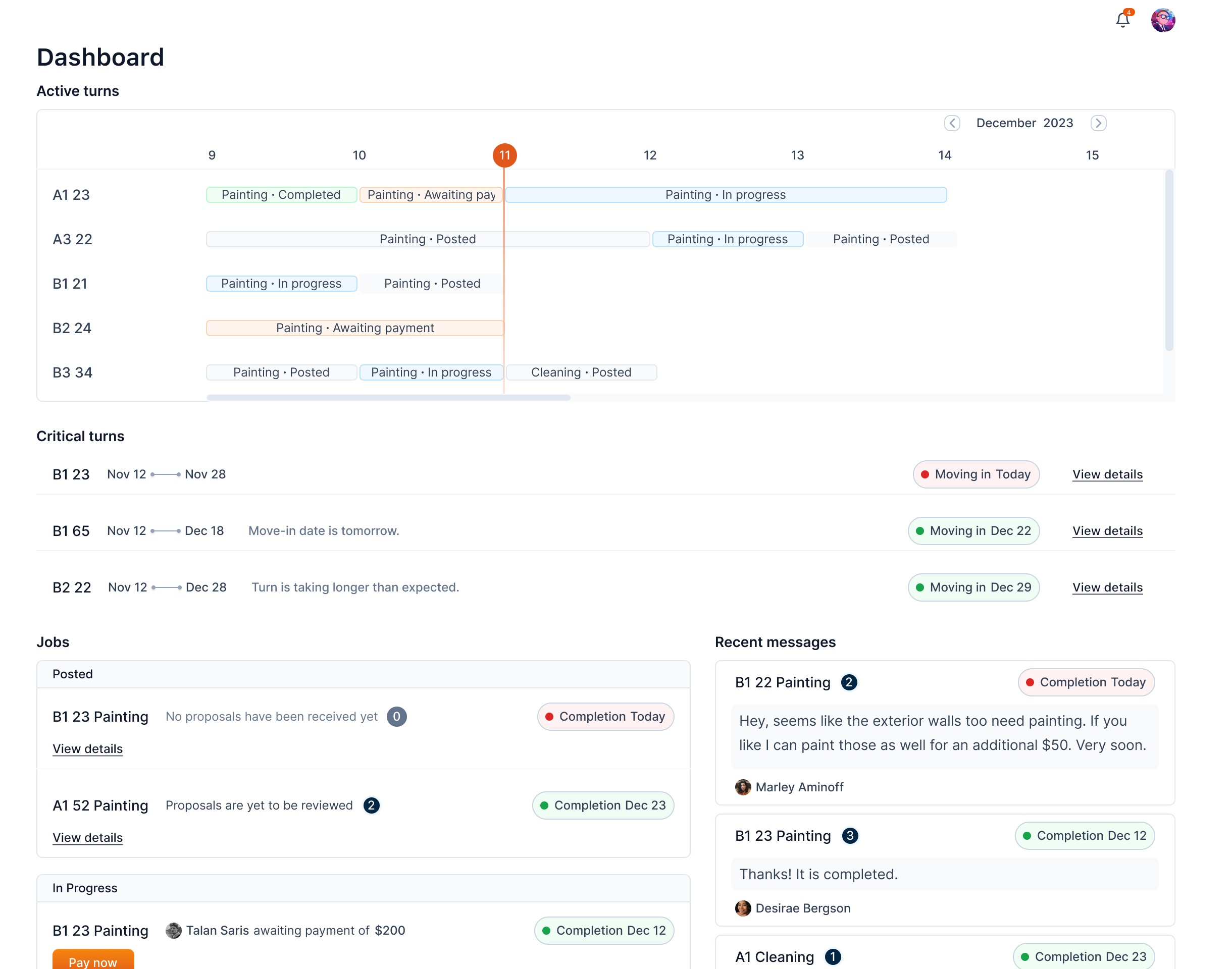
The dashboard provides a centralized view for users to take necessary actions. It highlights critical alerts such as turnovers with overdue end dates and jobs with unseen proposals.
The dashboard is divided into three main sections: Critical Turns, Critical Jobs, and Recent Messages. Each section is detailed in the following headings.
Critical turns
The Critical Turns section highlights turnovers that require your immediate attention. Here’s what you might see and what it means:
-
Move-in Date Has Passed: If a turnover’s scheduled move-in date has already passed, it will appear here, indicating that the move-in has happened but the turnover hasn’t been completed yet. This needs the highest attention.
-
Approaching Move-in Date:
• Today: Turnovers with a move-in date scheduled for today.
• Tomorrow: Turnovers with a move-in date scheduled for tomorrow.
• In Two Days: Turnovers with a move-in date scheduled in the next two days.
Since move-in date is approaching, this means the user needs to take action on the turnover.
-
Turnover Taking Longer Than Expected: If a turnover’s end date has already passed, it means the turnover process is delayed.

Each row shows the unit information, turn's expected duration, the reason for the alert, and the status and the move-in date.

By clicking the View details button, the turn detail side drawer is opened and you can take appropriate action.
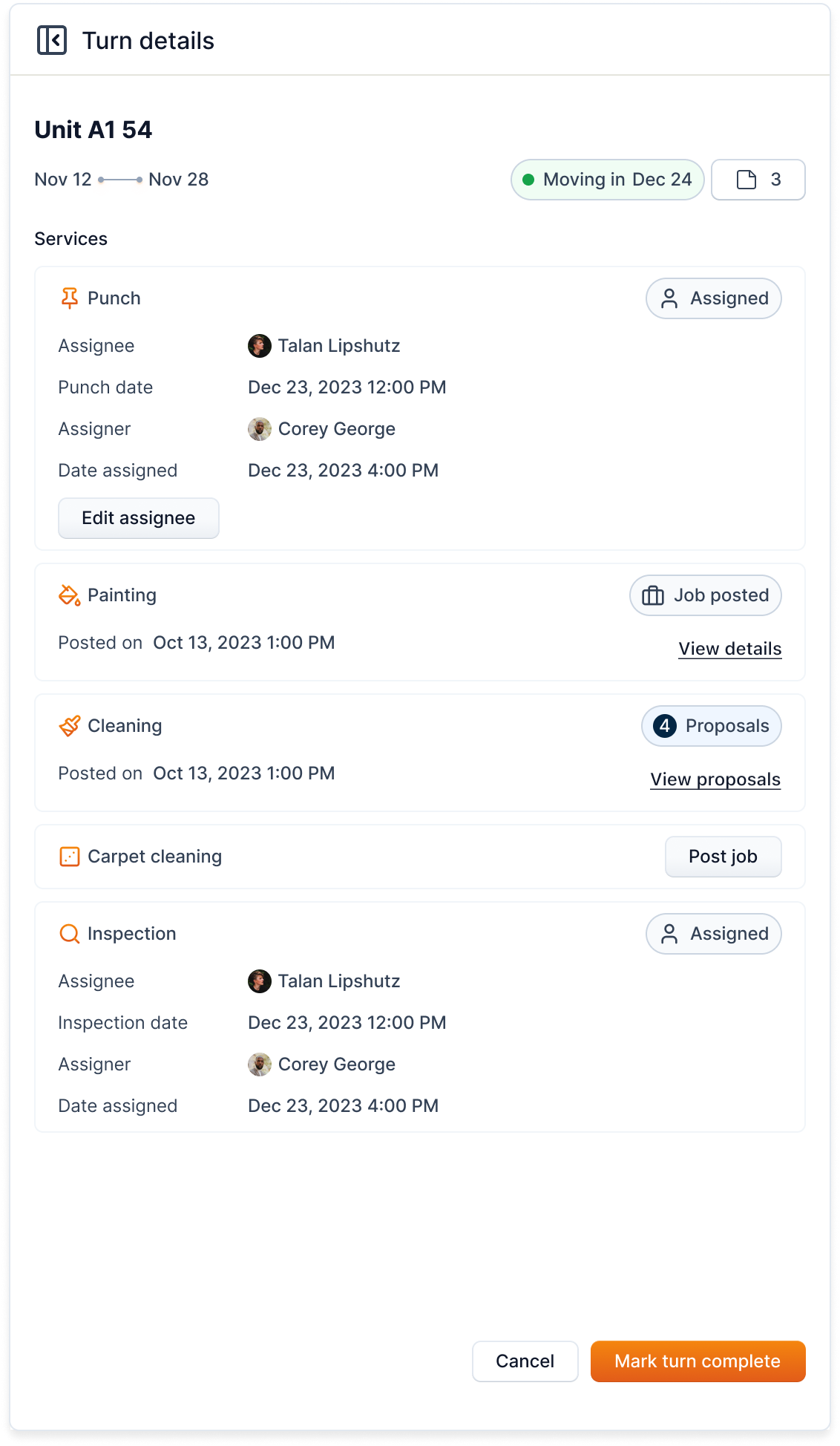
Info
Once you mark a turnover as complete, it will be removed from the Critical turns section and the active turnboard.
Jobs
The Jobs section highlights jobs that need your immediate action or review. Here’s what you might see and what it means:
-
No Proposals Yet: Jobs that have been posted but haven’t received any proposals for over a week will appear here. This means these jobs need more attention to attract proposals.
-
Awaiting Payment: Jobs where the payment is pending will be listed here. This indicates that payment needs to be processed to move forward.
-
Proposals Not Reviewed: Jobs that have received proposals but the proposals haven’t been viewed yet will show up here. This prompts you to review the proposals to keep the job process moving.
-
Proposed New Price: If a job has received a new price proposal, it will appear here, indicating that there is a price change proposal awaiting your review.
For the ease of viewing, this section is subdivided into Posted and Hired (or In Progress) sections.
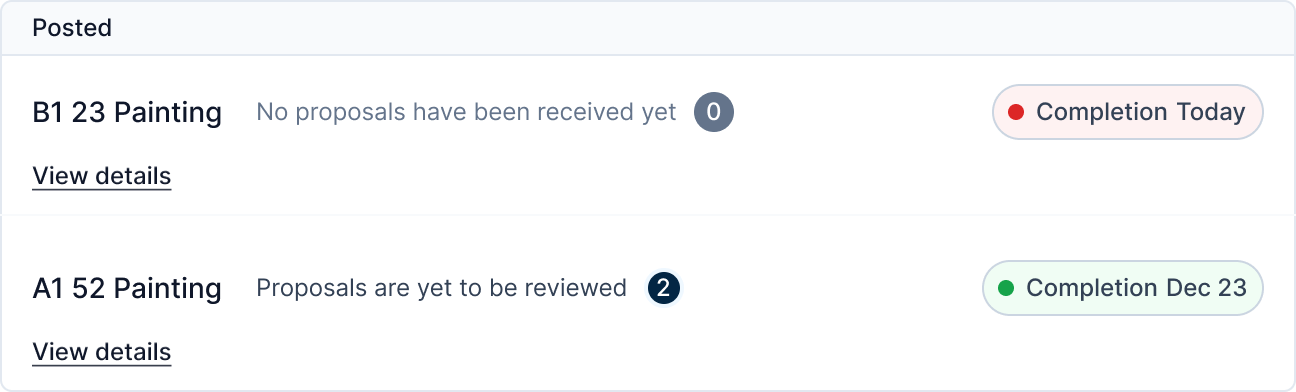

Clicking on the View details button on each job will open a popup relevant to the alert.
Recent messages
The Recent messages section contains the unread messages.
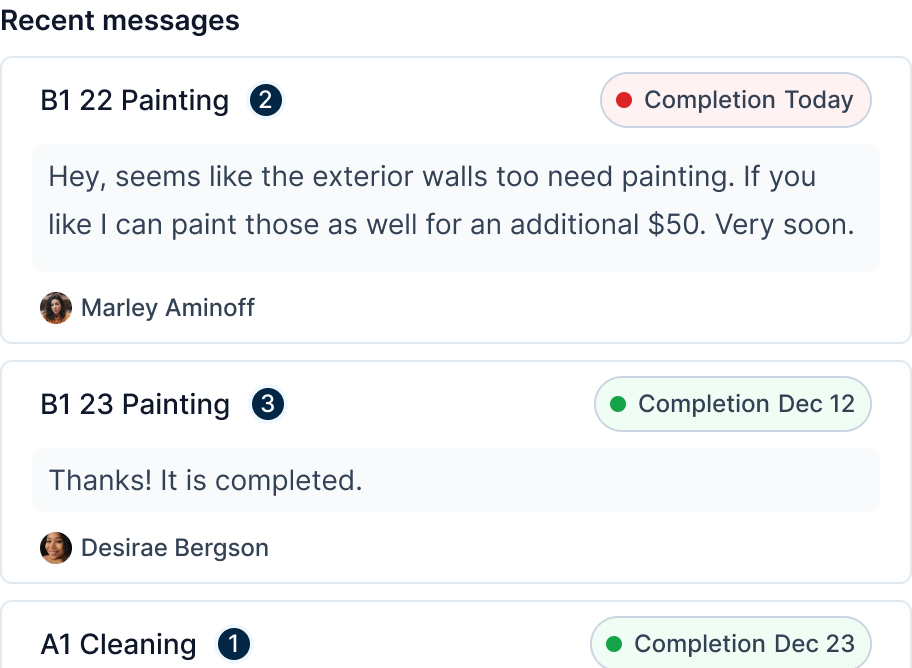
Clicking on a message opens the entire chat.