Property Bulk Upload
Info
Not available to all users
If you prefer not to add properties individually, you can utilize the bulk upload feature to simultaneously add multiple properties to a community.
You can access the bulk upload feature from the properties page by clicking the "Bulk Upload" button.

After clicking the button, a new page will open to upload the properties as shown below.
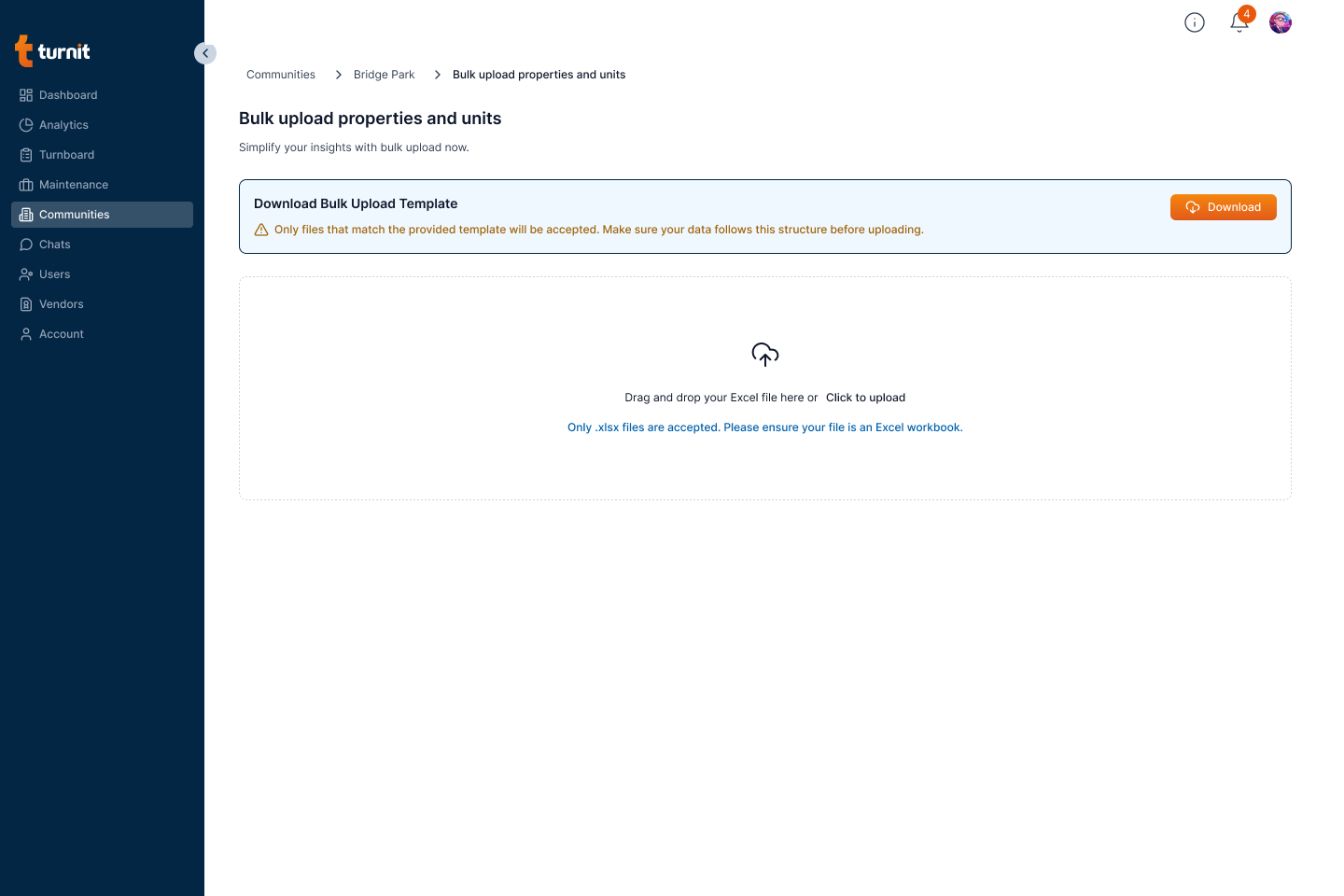
Here, you can download the sample CSV file by clicking the "Download" button. This file contains the format in which you need to enter the property information.

After downloading the CSV file, you can enter the property information in the file and upload it by clicking the "Click to upload" button or dragging the CSV or Excel file with the property data into the upload area.

After the upload is complete, you can click on the "Submit" button to continue with the bulk addition.
Tip
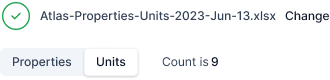
You can click on the change button to change the uploaded CSV.
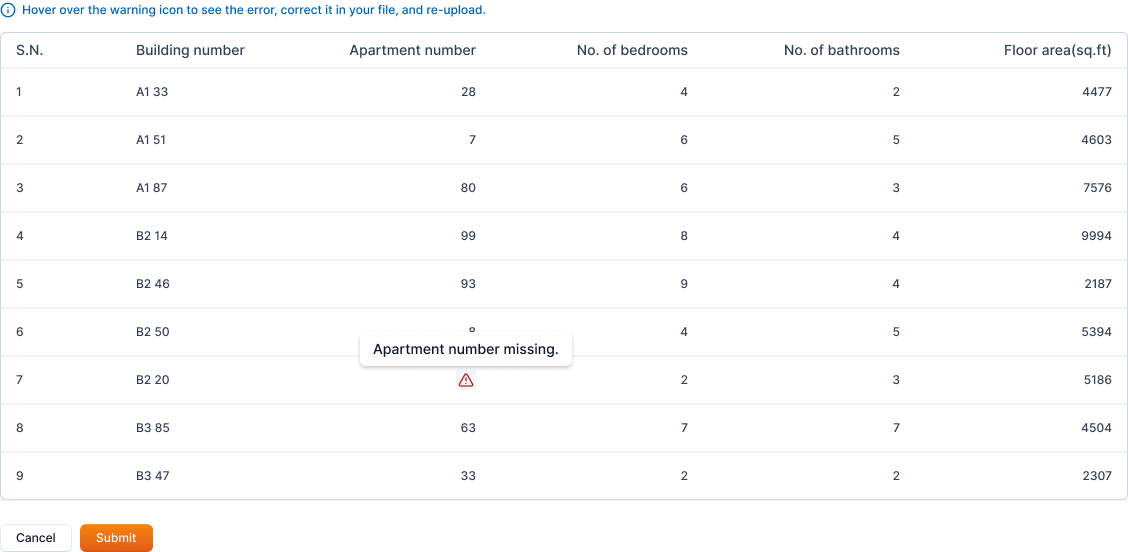
Any missing data in the CSV file is indicated with the following icon and also shows the info on hover.

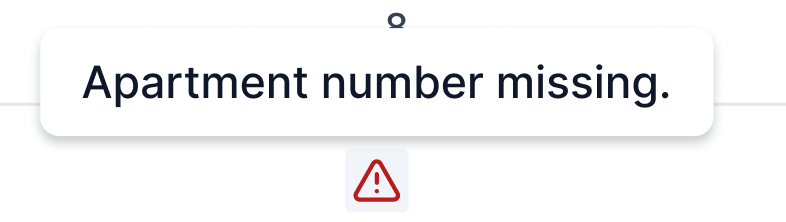
You can review the data and re-submit the CSV if required by cancelling the process.
Warning
If you continue with missing data, the properties with missing data will not be added to the community.
After reviewing the data, you can click on the "Submit" button to add the properties to the community.
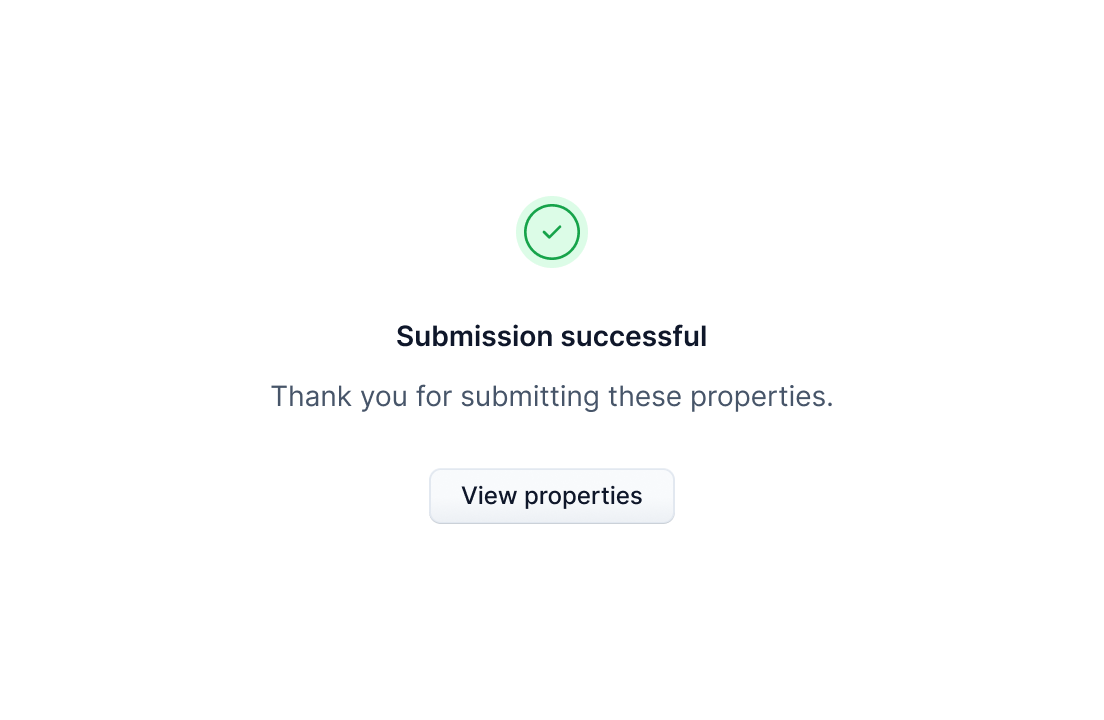
You are then redirected to the submission status page. If the submission was successful, you can click on the "View properties" button to go back to the properties page and view the newly added properties.